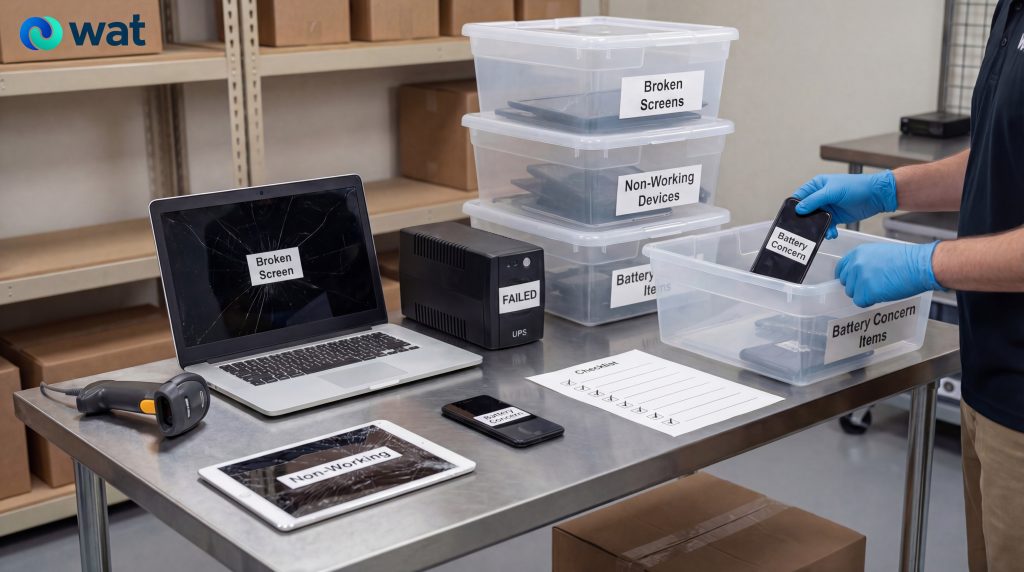
In every UAE office, damaged electronics tend to accumulate quietly: a laptop with a cracked screen, a barcode scanner that won’t turn on, a phone that stopped charging, a power bank that looks “puffy,” a small UPS that failed during a power event.
The challenge is not just disposal. Damaged items are harder to store safely, harder to track, and easier to mishandle—especially when teams are busy and equipment is being moved between IT, facilities, and admin storage areas.
This guide is a practical, workplace-friendly approach for handling damaged electronics before pickup. The goal is simple: keep people safe, keep assets controlled, and keep the handover clean and documented.
Why damaged electronics need a different process than routine e-waste
Most offices already have a basic “retired devices” flow. Damaged items break that flow for three reasons:
- Physical risk increases: swollen or damaged batteries and crushed devices should not be treated like normal storage.
- Data risk still exists: a “dead” device can still contain storage media.
- Traceability gets messy: damaged items often lose labels, accessories, or original owners.
A clear, consistent staging process solves most of these issues.
Step 1: Do a quick triage (sort first, then store)
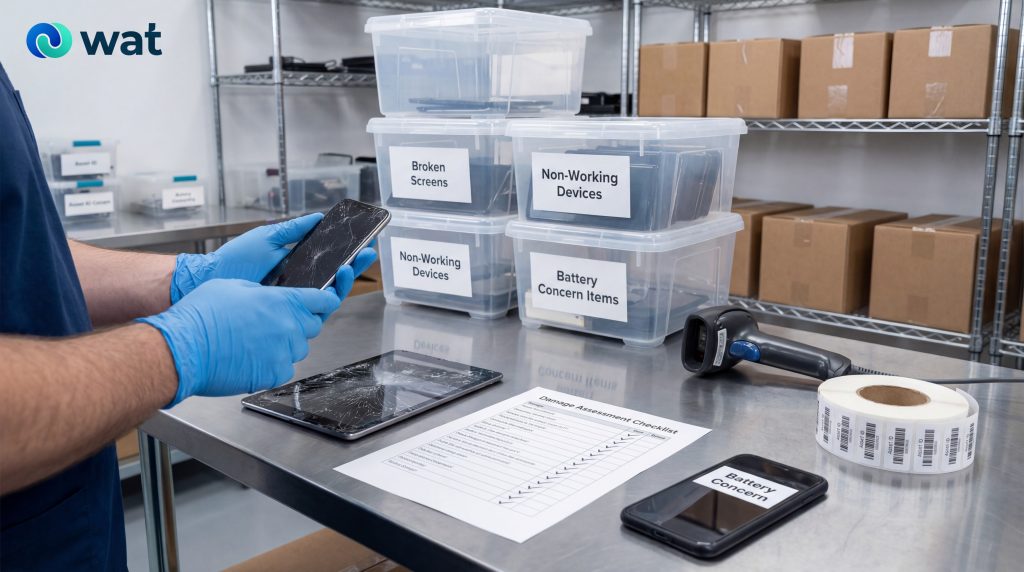
Before anything goes into storage, sort items into simple categories. Do not mix categories in the same box.
Use these four lanes:
- Broken screen / physical damage (but battery appears normal)
- Laptops with cracked displays
- Monitors with shattered panels
- Tablets with broken glass
- Non-working devices (unknown fault, battery appears normal)
- Devices that won’t power on
- Devices that won’t boot
- Devices that fail basic checks
- Battery concern items (swollen, leaking, unusually hot, or visibly compromised)
- Swollen laptop batteries
- Bulging power banks
- Phones or handhelds with battery swelling
- Any device that shows signs of battery damage
- Loose accessories and small parts (kept separate and labeled)
- Chargers, docks, cables, adapters
- Mounts, brackets, scanners cradles
- Any removable storage you found during sorting
If your team wants extra clarity, add a fifth lane for “data-bearing devices” (anything that could contain internal storage). That helps IT align the data-handling step.
Step 2: Apply simple labeling that survives handover
Damaged items often lose their identity. Labeling prevents “mystery boxes.”
Minimum labeling fields (on the device or on the bag/box holding it):
- Category lane (Broken Screen / Non-Working / Battery Concern / Accessories)
- Department or location (example: Finance, Reception, Store Room 2)
- Quantity (if boxed)
- Date staged
- Owner (team name, not necessarily a person)
If you already have asset tags, keep them visible. If tags are missing, do not delay staging—just label consistently going forward.
Step 3: Separate battery-concern items immediately
Battery concern items should never be thrown into the same bin as routine devices.
Basic handling rules for battery-concern items:
- Do not charge the device “to test it.”
- Do not puncture, compress, or stack heavy items on top.
- Store separately from routine e-waste and away from heat/direct sunlight.
- Keep the container clearly labeled so staff do not “tidy it away” into general storage.
For more on safe workplace handling of lithium-ion batteries in the UAE, see WAT’s guide: Lithium-Ion Batteries in the Workplace: Safe Storage & Disposal in the UAE.
If a device shows signs of serious battery compromise (for example, swelling that changes shape quickly, visible leakage, or strong odor), isolate it and escalate internally to the appropriate safety owner (facilities/HSE) before moving it again.
Step 4: Treat “dead” devices as data-bearing until IT confirms otherwise
A device that does not power on can still contain storage. Avoid assumptions.
Practical rule:
- If it ever belonged to the business and could store information, treat it as data-bearing until IT signs off.
This is especially relevant for:
- Laptops and desktops
- POS terminals and payment devices
- Servers, NAS, storage arrays
- Network devices with configuration storage
- Smartphones, tablets, handheld scanners
For a practical overview of common data-security risks during IT asset disposal, see WAT’s guide: 5 Key Data-Security Risks in IT Asset Disposal (ITAD) for UAE Businesses.
Step 5: Use a clean staging area with controlled access
Most mistakes happen between “device retirement” and “pickup day.”
Set up a staging area that is:
- Restricted access (not a shared storeroom everyone uses)
- Clearly labeled (one sign at the entry helps)
- Organized by the triage lanes above
- Easy to count (boxes aligned, not piled randomly)
A simple staging layout that works well:
- Shelf or pallet row for Broken Screen lane
- Shelf or pallet row for Non-Working lane
- A separate, clearly marked area for Battery Concern lane
- A separate bin for Accessories lane
Step 6: Pack damaged items to prevent further breakage (and confusion)
Damaged screens and cracked devices become worse when they’re tossed into mixed boxes.
Packing rules that reduce issues:
- Broken screens: keep upright where possible; avoid pressure on the screen face
- Non-working devices: bag and label per device where practical; otherwise box by department
- Accessories: bag separately; label by source department and device type (if known)
- Remove liquids from the area (keep devices away from cleaning supplies or wet zones)
If a device is visibly damaged, add one extra label:
“Damaged – handle carefully.”
If your office has a batch of damaged devices and you want a structured pickup flow (with clear staging, labeling, and controlled handover), request a collection with WAT.
Step 7: Prepare a simple handover record (keep it practical)
You do not need a complex system. You need clarity.
Minimum handover record fields:
- Pickup date
- Pickup location
- Category totals (Broken Screen / Non-Working / Battery Concern / Accessories)
- Point of contact (your side)
- Any special notes (example: “battery concern box included”)
If your team already has an asset register, attach/export the relevant lines. If not, a basic log is still better than nothing.
Common mistakes to avoid
- Mixing swollen batteries with general device bins
- Trying to charge or “test” a battery-concern device
- Keeping damaged items in open-access storage areas
- Boxing broken screens with heavy equipment on top
- Assuming non-working devices do not contain data
- Forgetting to label accessories, causing lost chargers and mixed handovers
FAQs
How do we know if a battery is “swollen”?
If the device casing bulges, the screen lifts, the device doesn’t sit flat, or a power bank looks puffy, treat it as a battery concern item and segregate it.
Should we power on a device to check what’s inside before pickup?
Only if your internal process specifically allows it and the device is not in the battery concern lane. If there’s any battery concern, do not charge or test it.
Can we store damaged devices in the general storeroom temporarily?
It’s better to use a controlled staging area. General storerooms increase mix-ups and make it harder to manage access and tracking.
Do broken screens change the disposal process?
They mainly change storage and handling. The key is preventing further breakage and keeping categories separated so pickup and handover stay clean.
What’s the simplest way to avoid data mistakes with damaged devices?
Treat anything that could store data as data-bearing until IT confirms otherwise, and keep a basic handover record for accountability.
If your UAE office is dealing with broken screens, non-working devices, or swollen batteries and you want a clear, safe pre-pickup process, schedule an e-waste collection with WAT.